
Share page: || Newsletter: Subscribe Unsubscribe


Permanently blocks unwanted monitoring, applications, services and drivers
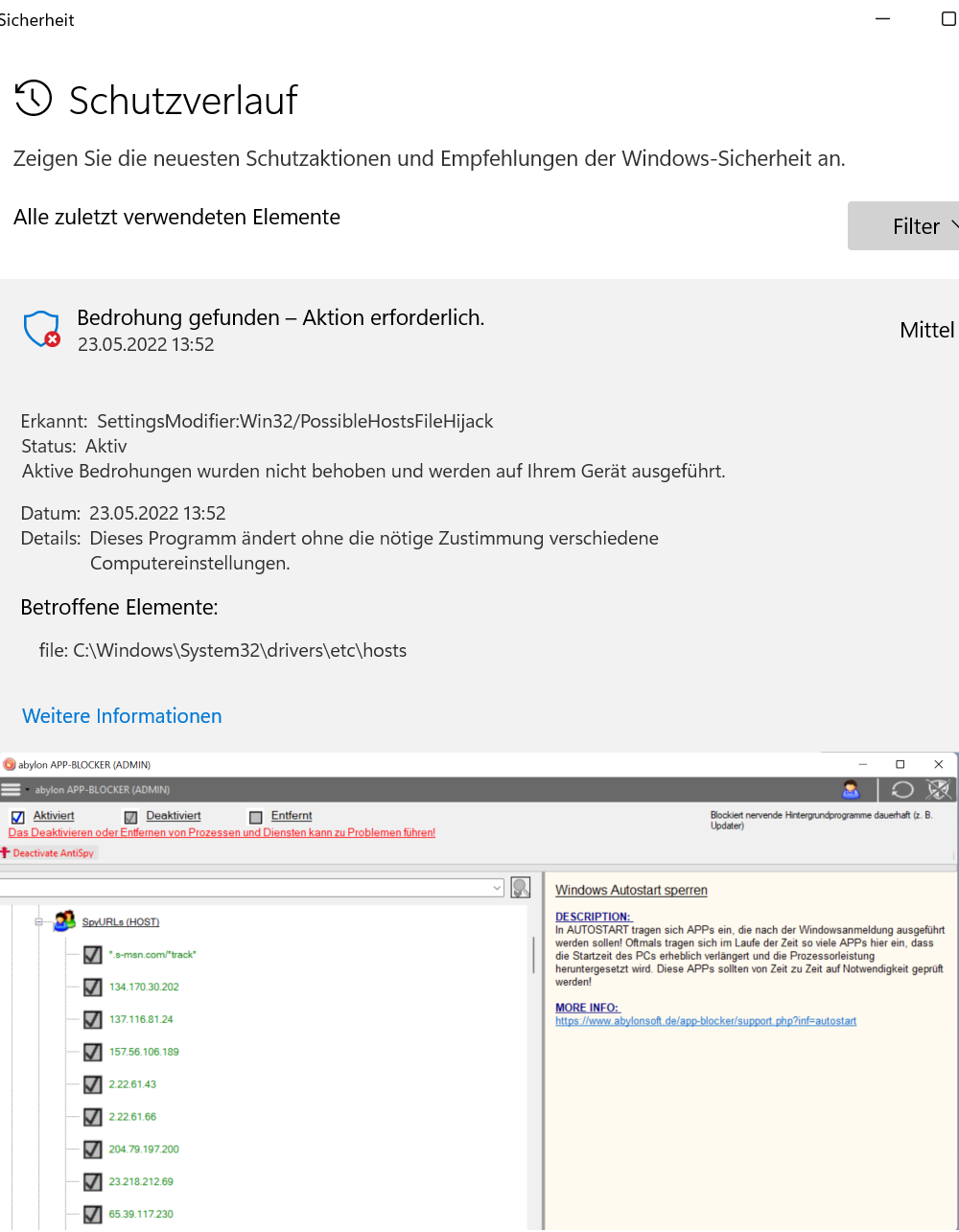
The software abylon APP-BLOCKER offers so-called AntiSpy functions. Here, among other things, IP and URL addresses are entered into the Windows host file, which are used for monitoring. This is necessary so that the corresponding "spy requests" are not forwarded. However, Windows sees the modification of this file as an attack. If you want to effectively reduce the monitoring by Windows, you must accept this change and allow the threat from Defender.
See also screenshot:
The monitoring of drivers and services caused some problems. For example, if a driver or service was changed by a foreign program, the software abylon APP-BLOCKER has reset it. For this reason, from Version 2018.2 the default setting has been changed and the monitoring of services and drivers has been deactivated.
This setting is currently NOT available via the GUI. If desired, this setting can be changed via the registry as follows:
HKEY_LOCAL_MACHINE\SOFTWARE\abylon\EXECUTIONLOCK\SETTINGS\EXELOCKCLEANUPDRIVERS or CLEANUPSERVICESNOTE Afterwards changes are only possible via the app \"abylon APP-BLOCKER\". Therefore, these changes should only be made by users with experience!
The functionality Reset to the initial state is only available for the Rubies AntiSpy and Services. Just switch to administrator mode in the program and select the appropriate category.
Questions and Answers about the installation of software products from abylonsoft.
Usually, with abylonsoft software, the new version can be installed over the old version. This is also the case if the setup asks in advance and offers the uninstall option. If an over-installation for any reason is not possible, so you will be pointed out during installation. In this case no other option is offered.
Yes, because during the installation the software has to make some settings for which only the administrator has rights. So log in for the installation as an administrator or contact your responsible administrator.
Possible cause of error:
Updates in the same major version number are free. Updates to the next major version number are subject to an update fee. If you have any questions or problems with us you are welcome to contact us in Kontakt.
This is because when a new user is created, Windows first creates the registry and makes entries. Since our software also has to make registry entries, an operating system restart is required for proper operation.
.If this error occurs, you should manually download and install the setup from the download page. All settings of the previous version will be adopted.
General questions and answers about the software from abylonsoft.

We unfortunately had to realize that Microsoft has changed something since the end of the Windows 7 support. Since that time it seems to be necessary to install a so-called Redist-Pack of Microsoft Visual Studio. This was not necessary before, but now it seems to be absolutely necessary. Please download and install the Redist-Pack of Microsoft Visual Studio 2008.
Alternatively please use our contact form for further information! Please indicate the software version and operating system.
From version 19.1 or 2020.1 the appropriate Redist-Pack is delivered with the setup.
First of all, passive RFID tokens (chip cards or key fobs) need a magnetic field or high-frequency radio wave to be supplied with energy. This is usually done by the RFID card reader. The data integrity on the RFID token is not endangered by light magnetic or radio fields. The data is not likely to be erased, for example by a mobile phone, a magnet or a monitor. However, an electromagnetic interference source can lead to an impairment of the reading reliability.
Storing the RFID token in the same pocket as the mobile phone is no problem. In order not to disturb the reading process, the RFID card reader should be placed as far away from electromagnetic sources as possible! In a microwave, on the other hand, the RFID token is likely to be destroyed.
Tray-Icons are small buttons, which are displayed in the taskbar at the bottom right, next to the clock.
These icons are used to display information and call functions. In the preferences, Windows deactivates tray icons of programs so that they are not displayed for the time being. The following section describes how the settings for all or individual icons can be set.
NOTE The description is general. Depending on the program, you must select the appropriate tray icon. You can find this in the help or the FAQ's.
To the left of the clock, there is a small white arrow pointing upwards, which can be used to display the other tray icons.
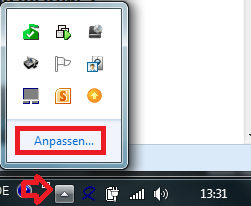
With "Customize" you can define the behavior of the tray icons. The "Info Area Symbols" window opens.
NOTE Below are alternative ways to open this window.

In the settings window for info area symbols, you can define the behavior of each individual tray icon.
Select the corresponding icon and select "Show icon and notifications" as option. After that you will find the tray icon on the taskbar to the left of the clock at any time.
Alternatively, you can enable the option "Always show all icons and notifications on the taskbar". In this case, the tray icons of future programs will also be displayed directly on the taskbar.
Move the mouse to a free area of the taskbar and press the right mouse button. Select Properties from the menu. The dialog for customizing the info area symbols opens on the Taskbar page via the "Customize" button.

As a further option, you can also open the Control Panel via the Start menu. Select "Large Icons" or "Small Icons" in the upper right corner. Now you can open the settings via the "Info Area Symbols" icon.

Because of errors in the operating system or other software, as well as the variety of the hardware used, apparently occurring errors and / or irregularities in the software of abylonsoft must not necessarily be justified in this software. This means that the interactions between our software and software / hardware from other manufacturers are so complex that they cannot be taken into account by us in all cases. Often errors / defects in other software (e.g. the operating system) also occur, which only become effective in combination with our software. These errors usually manifest themselves in a general protection violation or a system crash. For these reasons we subject our software to a very extensive test before release in order to reduce the problems and errors to a minimum.
Should you nevertheless become aware of a direct error in our software, we will correct it as soon as possible. So that we can understand the error / the problem, you should give us all the details:
Please use our support form support form!
for this purposeFor more see AGB's
Site: 1 from 2 Forward »

When the program install it creates a desktop icon. Right click to pin it to the start menu. Problem is: When I right click on the desktop icon and pin it to the start menu, the start menu icon shows no icon and if clicks goes no were. If I follow the desk top icon to the exe file and then right click and pin to start menu it works, it does create a working icon on the start menu. Peace and love from me to all.

Hi Maximomax48, thanks for the info. I just did a test and for me it works without problems. You are welcome to contact me again. Please provide as much information as possible, including the language used.

After installation when starting it in my very old, updated 64-bit W7 HPE SP1 PC I get the Error Message install.res.????.dll . Why? Thank you for reading and hopefully answering soon. 
Right away I would say that the Redist Pack was not installed correctly or incorrectly. Unfortunately this is a known error by Microsoft and they do not offer a real solution. One should update to Win 10.
Another possibility is that the MS framework .NET 3.5 is not or incorrectly installed.
Maybe check with the version for Win 10. This need the MS famework .NET 4.0!

Dear Sirs,
I can not reinstall the app-blocker program on the same notebook.
I've purchaced this program in the Year 2013 (reference number: 49972044) and 2014 (reference number: 49972044)...
Your registry data are wrong! Please check your name and your registration number and compare your current version with your licence. If your licence is for a later version, please download the latest version from our server. We can not provide support for older versions. New attempt?
Should I stop attemps and forget about your software?
Or what can I do?
Sincerely yours,
Dr. Valeriy Z.
vaz@reutov.net
Hi Valeriy,
The following registration-data are for our software abylon APP-BLOCKER in the version 2014.2.
-------
Username:
[name]
Key:
00XX-xxxxxxxx-yyyyyyyyyy-D11V2
------
Please download the appropriate Version.
Alternatively you can update to the current version 2016.7. Enter the 3rd part of your previous registration key as a coupon code.

while installing as it finishes installation before launching the programme i get an error message saying api-ms-crt-runtime-[1-1-0.dll is missing from your computer, and the program terminates
Hello Amit PASAD,
the error message states that the Microsoft Redist Pack was not installed correctly. Without the Redist package our software will not run.
Please proceed in the following order. Once a point is successful, the other points can be skipped. Please note that a distinction is made between 32 and 64-bit operating systems.
1. Boot the computer and try to re-install our software.
2. Install the Redist pack manually:
a) Download Redist Setup for 32-bit operating systems
b) Download Redfst setup for 64bit operating systems
3. Copy the Redist files in the program directory. For this, the following zip file is downloaded and unpacked in the program directory of our software.
a) Download Redist files for 32-bit operating systems
b) Download Redist files for 64bit operating systems
After each attempt, the computer should be booted.
We would be very grateful if you write us a short feedback and specify the used operating system.

After I install this software,It display "It can't run ,because your computer lost vcruntime140.dll."I
ask Taiwan microsoft,he tell reinstall vc++ 2015 runtime and I try fix my windows installer,but I still can't run app-blocker.(This software is download from ShareOnSale.com two ago)
Please see previous answer...

I want to use your software to stop compattelrunner.exe and diagrunner.exe - both Microsoft data collecting items that are not currently running (I killed them earlier). Can I do that? Is there some kind of explorer aspect of your software I am missing?
Thank you
Unfortunately we can not give detailed information about individual processes. We offer the possibility of additional access information on the Internet. Simply click on the right side on "more info".
Unfortunately, the question about "Explorer Aspect" is not clear to me.

I downloaded the program from Topsoft Bargains.
It stated:
"Download file: Download Here (License not required)"
But after installing it turned out to be a trial without a KEY!
Can you send me a license-KEY/code?
Please use the folling registration-page:
http://www.abylonsoft.com/ereg10x.php?id=55

scheduler is disabled and your program block this.No selector for any services in your application
The [b]item "Services"[/b] is displayed only in [b]Expert View[/b]. For this the software

I installed programs but no apps are coming up anywhere. Does it require a reboot to show them? Thx.
No, a reboot is not required.
In the program window on the left, a tree is displayed. If you open up the main-node, comes another level with the users. Among the respective processes or services are displayed. Please send a Screenshot of the program window.

UPON REGISTRATION FOLLWING MSSG POPS UP:
EXECUTION LOCKX64.EXE HAS STOPPED WORKING.
Window is checking problem to the solution...
The program does not open
Hi Syed,
we suspect that the software was not installed correctly or a virus or security software prevents the flawless execution. Execute the setup again and sure to disable the antivirus software temporarily.
For general comments, please use our Comments Form!