
Share page: || Newsletter: Subscribe Unsubscribe


ATUOCRYPT directory. Unencrypted files are encrypted.


AUTOCRYPT directory.


AUTOCRYPT directory.

AUTOCRYPT directory are automatically encrypted!
NOTE Only displayed if the dialog was started with admin rights!

NOTE Only displayed if the dialog was started with admin rights!


The password assignment is organized by the integrated Credential-Provider. Thus you can freely choose between password, certificate and hardware key (chip card, USB stick, etc.).

ATUOCRYPT directory. Unencrypted files will be encrypted.AUTOCRYPT directory. The path can be changed by double-clicking on this field.
NOTE Files are not moved automatically!
HINWEIS Changes will be saved in the encrypted file!
AUTOCRYPT directory and then encrypted.AUTOCRYPT directory and then decrypted.AUTOCRYPT directory can be opened by double-clicking. If the program window is not open, the password must be entered!The simple file safe with automatic background encryption
To store files encrypted in the OneDrive Cloud, proceed as follows:
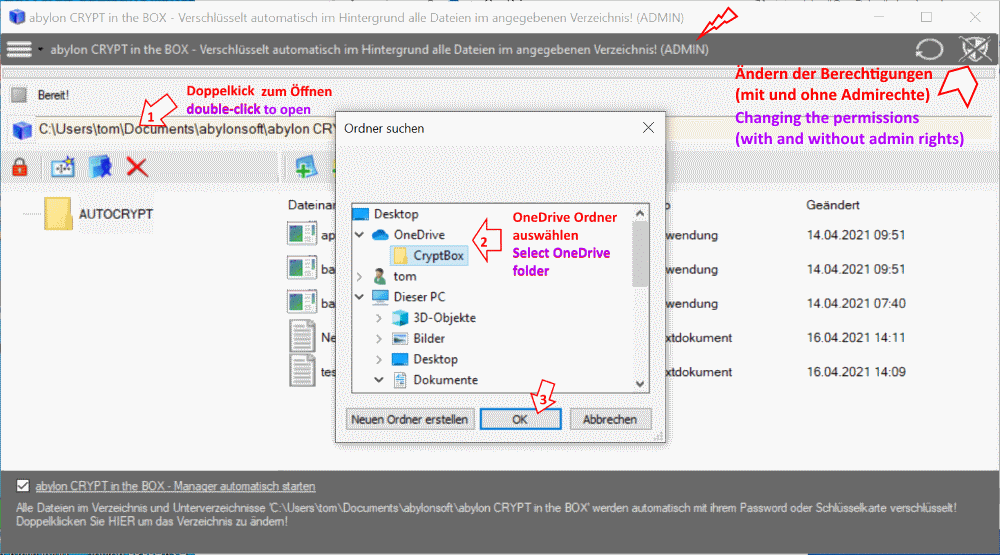
(c) Self-made screenshot for changing the Autocrypt folder at abylon CRYPT in the BOX
First, open the abylon CRYPT in the BOX app.
Now the encrypted Autocrypt directory is created in the desired location in the cloud. This may take a little time. After that, access is possible.
PLEASE NOTE: The files from the original autocrypt directory are NOT automatically moved to the new directory. These must be copied manually afterwards!
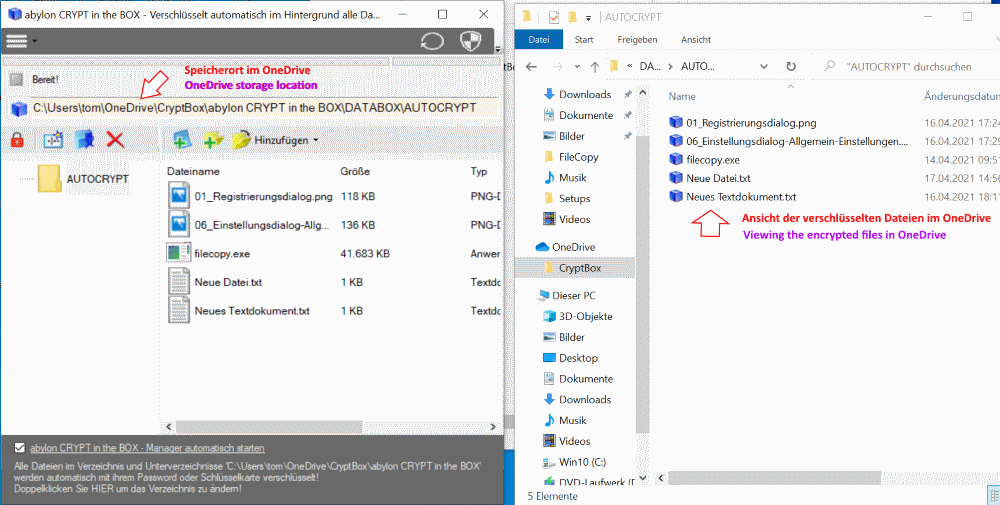
(c) Self-made screenshots of the encrypted storage in OneDrive
All files placed in the CryptBox are stored encrypted in the folder ../Ondrive/CryptBox/abylon CRYPT in the BOX/DATABOX/AUTOCRYPT in our example.
INFO: When dragging and dropping (Drag&Drop), make sure that the abylon CRYPT in the BOX app and the Windows File Explorer have the same user context. For example, no file can be dragged from the file explorer into the app if it was started with admin rights. Changing the user context is done via the "shield icon" in the upper right corner.
Questions and Answers about the installation of software products from abylonsoft.
Usually, with abylonsoft software, the new version can be installed over the old version. This is also the case if the setup asks in advance and offers the uninstall option. If an over-installation for any reason is not possible, so you will be pointed out during installation. In this case no other option is offered.
Yes, because during the installation the software has to make some settings for which only the administrator has rights. So log in for the installation as an administrator or contact your responsible administrator.
Possible cause of error:
Updates in the same major version number are free. Updates to the next major version number are subject to an update fee. If you have any questions or problems with us you are welcome to contact us in Kontakt.
This is because when a new user is created, Windows first creates the registry and makes entries. Since our software also has to make registry entries, an operating system restart is required for proper operation.
.If this error occurs, you should manually download and install the setup from the download page. All settings of the previous version will be adopted.
General questions and answers about the software from abylonsoft.

We unfortunately had to realize that Microsoft has changed something since the end of the Windows 7 support. Since that time it seems to be necessary to install a so-called Redist-Pack of Microsoft Visual Studio. This was not necessary before, but now it seems to be absolutely necessary. Please download and install the Redist-Pack of Microsoft Visual Studio 2008.
Alternatively please use our contact form for further information! Please indicate the software version and operating system.
From version 19.1 or 2020.1 the appropriate Redist-Pack is delivered with the setup.
First of all, passive RFID tokens (chip cards or key fobs) need a magnetic field or high-frequency radio wave to be supplied with energy. This is usually done by the RFID card reader. The data integrity on the RFID token is not endangered by light magnetic or radio fields. The data is not likely to be erased, for example by a mobile phone, a magnet or a monitor. However, an electromagnetic interference source can lead to an impairment of the reading reliability.
Storing the RFID token in the same pocket as the mobile phone is no problem. In order not to disturb the reading process, the RFID card reader should be placed as far away from electromagnetic sources as possible! In a microwave, on the other hand, the RFID token is likely to be destroyed.
Tray-Icons are small buttons, which are displayed in the taskbar at the bottom right, next to the clock.
These icons are used to display information and call functions. In the preferences, Windows deactivates tray icons of programs so that they are not displayed for the time being. The following section describes how the settings for all or individual icons can be set.
NOTE The description is general. Depending on the program, you must select the appropriate tray icon. You can find this in the help or the FAQ's.
To the left of the clock, there is a small white arrow pointing upwards, which can be used to display the other tray icons.
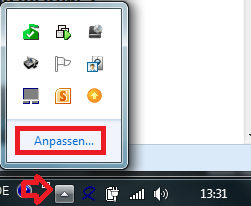
With "Customize" you can define the behavior of the tray icons. The "Info Area Symbols" window opens.
NOTE Below are alternative ways to open this window.

In the settings window for info area symbols, you can define the behavior of each individual tray icon.
Select the corresponding icon and select "Show icon and notifications" as option. After that you will find the tray icon on the taskbar to the left of the clock at any time.
Alternatively, you can enable the option "Always show all icons and notifications on the taskbar". In this case, the tray icons of future programs will also be displayed directly on the taskbar.
Move the mouse to a free area of the taskbar and press the right mouse button. Select Properties from the menu. The dialog for customizing the info area symbols opens on the Taskbar page via the "Customize" button.

As a further option, you can also open the Control Panel via the Start menu. Select "Large Icons" or "Small Icons" in the upper right corner. Now you can open the settings via the "Info Area Symbols" icon.

Because of errors in the operating system or other software, as well as the variety of the hardware used, apparently occurring errors and / or irregularities in the software of abylonsoft must not necessarily be justified in this software. This means that the interactions between our software and software / hardware from other manufacturers are so complex that they cannot be taken into account by us in all cases. Often errors / defects in other software (e.g. the operating system) also occur, which only become effective in combination with our software. These errors usually manifest themselves in a general protection violation or a system crash. For these reasons we subject our software to a very extensive test before release in order to reduce the problems and errors to a minimum.
Should you nevertheless become aware of a direct error in our software, we will correct it as soon as possible. So that we can understand the error / the problem, you should give us all the details:
Please use our support form support form!
for this purposeFor more see AGB's

Is it a life time deal or do i have to make yearly payment. If it is yearly then i am not interested.
If its life time than i would take the deal.

We offer our software without any time limitation. This means that once you have registered the software, you can use it as long as you want.
However, there is one point that I do not want to hide here. The license is valid only for the corresponding major version number. Minor updates are free of charge. But about once a year we release a new major version. For this you need a new license, which is chargeable. You can get it for a reduced price (3rd part of the license key is valid as coupon code).
However, all old versions of our software can be downloaded at any time from the corresponding download page (does not apply to free offer products).

Can I use this program to encrypt files on an external hard drive?
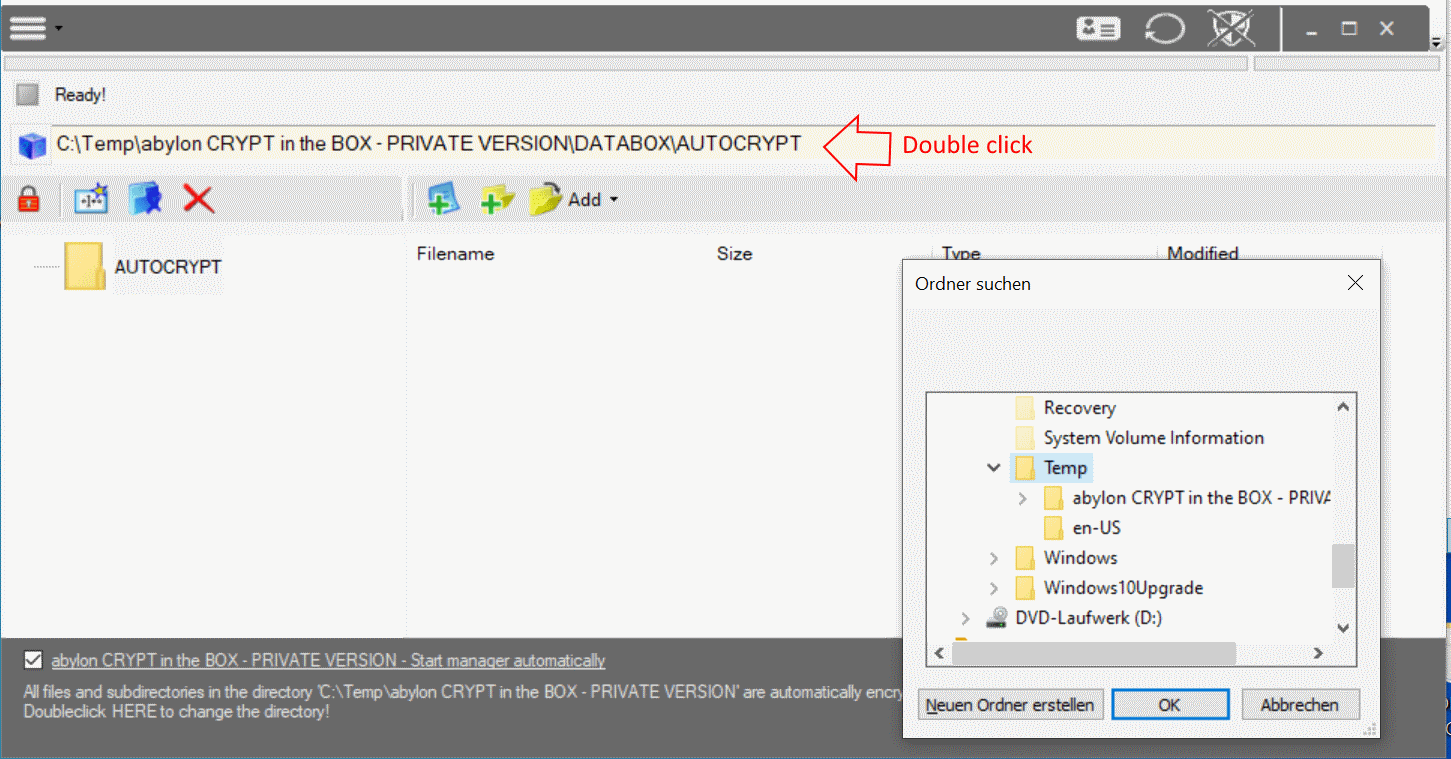
Thank you for your interest in our software. Of course you can also choose a directory on an external drive as AutoCrypt directory. The option is not directly visible. Simply "double click" on the yellow highlighted path and select the new directory.

Hi, I want to translate the "abylon CRYPT in the BOX" software into Turkish. Please help me.
Hello Osman,
thank you very much for your inquiry.
We only offer one language file for all our software products. It is located in the program directory and has an XML structure.
If nothing is changed in the XML structure and placeholders remain, the text entries can be changed freely.
With the software abylon CRYPT in the BOX the file names are:
Deutsch: APMPLangD.XML
English: APMPLangE.XML
If you have further questions, you are welcome to contact us again.

I have read that when I defrag my hard drive, encrypted areas, like this box, will be missed by the defragger and written over. Can items encrypted y your software be defragged?
Ich habe gelesen, dass, wenn ich meine Festplatte defragmentiert, verschlüsselte Bereiche, wie diese Box, wird von der Defragger verpasst und geschrieben werden. Können Items verschlüsselt werden und deine Software defragmentiert werden?
Our abylon CRYPT-in-the-BOX software is filebased. Therefore, defragmenting should not cause problems. So far, no user has reported such problems.
Should you observe any practical problems with our software, you can always contact us again.

Default Windows Picture Viewer opens empty window with error message "Picture is no more available or is in the no more accessible location"
Hi Ivan,
the "[i]Windows Live Photo Gallery[/i]" software opens the pictures and immediately reports that they are closed again. Our software monitors the status of the open file and deletes the decrypted file for security reasons immediately. This non-standard behavior of the software results the error you described.
Therefore we recommend of linking graphic files with another program!
For general comments, please use our Comments Form!