und abylon LOGON
 Nur abylon ENTERPRISE
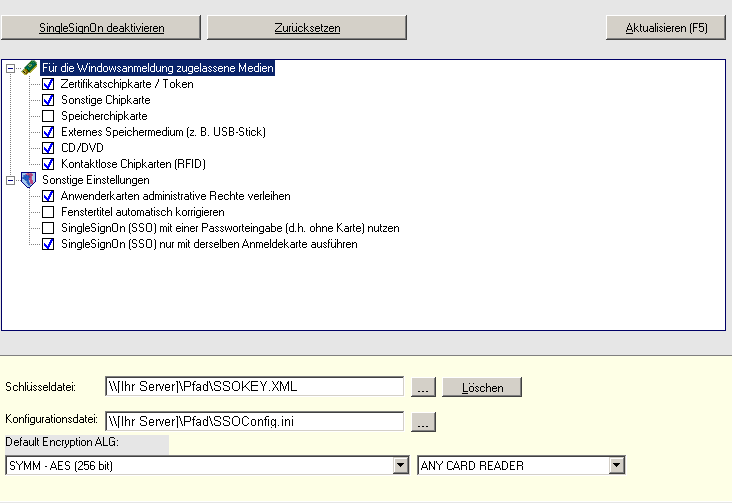
und abylon LOGON
Die Software abylon SSO unterstützt den Anwender bei der Eingabe von Anmeldedaten, wie Anmeldename und Passwort. Dazu werden die Anmeldefenster einmalig durch Eingabe der entsprechenden Anmeldedaten angelernt. Diese Daten werden verschlüsselt gespeichert. In Zukunft werden nach der Legitimation des Anwenders automatisch die Anmeldedaten durch die Software abylon SSO in die entsprechenden Felder eingetragen.
| 1. | SSO aktivieren | Zum Aktivieren muss im Einstellungsdialog auf das "Zauberer-Icon" geklickt werden. Im Anschluss wird auf der Seite angezeigt, dass das abylon
Single Sign-On aktiviert ist.
|
| 2. | Legitimation festlegen | Zur Legitimation können unterschiedliche Medien verwendet werden, wie z. B. Chipkarten oder Wechseldatenträger. Wenn mehrere mögliche Medien am Rechner zur Auswahl stehen, wird eine Übersicht zur Auswahl angezeigt.
Die einzelnen Kartentypen sind in den abylon EINSTELLUNGEN unter Single Sing-On > SSO Einstellungen deaktivierbar! |
| 3. | Masterpasswort | Nach der Festlegung der Legitimation kann optional ein Masterpasswort definiert werden. Damit wird ein zusätzlicher Schutz der Passworteingabe erreicht. Neben der Legitimation durch das Medium muss zusätzlich das Masterpasswort eingegeben werden.
|
| 4. | Automatische Überwachung aktivieren | Zur automatischen Überwachung muss in den abylon EINSTELLUNGEN unter Single Sing-On > SSO Applikationen das automatische Lernen aktiviert sein. Zum Einschalten drücken Sie den Schalte oben links Automatisches Lernen aktivieren und zum Ausschalten Automatisches Lernen deaktivieren. |
| 5. | Passwortfenster anlernen | In Zukunft überwacht die Software abylon SSO alle geöffneten Fenster. Sobald ein Fenster mit Passwortabfrage erkannt wird, kann dieses Fenster angelernt werden.
Dazu wird folgender Fragedialog angezeigt.
Nach Bestätigung dieses Fragedialog mit Ja müssen Ihre Anmeldedaten in den folgenden Fenstern eingegeben werden.
Diese Daten werden nun in den Anmeldedialog eingetragen. Für zukünftige Anmeldevorgänge werden die Daten in einer verschlüsselten Datei gespeichert. Wenn dieser Fragedialog mit Nein bestätigt wird, wird der entsprechende Passwortdialog in Zukunft ignoriert. In den abylon EINSTELLUNGEN unter Single Sing-On > SSO Applikationen kann das Verhalten der entsprechenden Applikation geändert werden. |
| 1. | Passwortdialog öffnen | Öffnen des anzulernenden Passwortdialoges. |
| 2. | Passwortdialog auswählen | Öffnen der abylon EINSTELLUNGEN unter Single Sing-On und Passwortdialog
anlernen auswählen:
|
| 3. | Anlernen | Es wird eine Liste mit allen geöffneten Fenstern angezeigt, in dem das anzulernende Fenster ausgewählt wird.
|
| 4. | Anmeldedaten eingeben | Im Anschluss geben Sie die benötigten Anmeldedaten ein.
|
 Zum Teil sind administrative Einstellungen nur in der
Firmenversion möglich! Bei Fragen verwenden Sie bitte unser Supportformular!
Zum Teil sind administrative Einstellungen nur in der
Firmenversion möglich! Bei Fragen verwenden Sie bitte unser Supportformular!
| 1. | Konten erstellen, kopieren, löschen und optimieren | In den abylon EINSTELLUNGEN unter Single Sing-On
> SSO Konten können Konten erstellt, kopiert, gelöscht und optimiert werden. Hierzu
ist die Administrator-Karte Voraussetzung.
Die Auswahl erfolgt über das Menü bei Auswahl des entsprechenden Kontos.
Zu den einzelnen Applikationen werden auf der rechten Seite Informationen angezeigt und können Einstellungen geändert werden, wie z. B. den Applikationsstatus oder den Anmeldename und das Passwort. |
| 2. | Applikationen verwalten und optimieren | In den abylon EINSTELLUNGEN unter Single Sing-On
> SSO Applikationen kann die Applikationsliste verwaltet und das Verhalten angepasst
werden (nur für erfahrene Anwender!).
Auf dieser Seite wird die Liste der überwachten Applikationen angezeigt. Hier können Applikationen neu hinzugefügt, gelöscht oder optimiert werden. Zudem kann die automatische Fenstersuche aktiviert und deaktiviert werden. |
| 3. | Kartenverwaltung | In den abylon EINSTELLUNGEN unter Single Sing-On
> SSO Karten kann die Applikationsliste verwaltet und das Verhalten angepasst
werden (nur für erfahrene Anwender!).
Diese Seite ist vor allem für Administratoren im Firmenumfeld gedacht. Hier kann die Administrator-Karte definiert, Schlüsselkarten gewechselt, deaktiviert oder entfernt werden. Gleichzeitig lassen sich auch die einzelnen Konten und Applikationen verwalten. |
| 4. | Sonstige Einstellungen | In den abylon EINSTELLUNGEN unter Single Sing-On
> SSO Einstellungen können Schlüsselkarten
festgelegt und Einstellungen vorgenommen werden.
|
| 5. | Whitepaper | Wir bieten ein ausführliches Whitepaper im Download-Bereich auf unserer Homepage oder auf Anfrage. |
(c) 2001-2010 abylonsoft ( Stand 04.05.2009)